
EndNote Online is the web browser version of EndNote and links/syncs to the desktop application.
Use EndNote Online in a web browser to:
- Create a list of references
- Sync your EndNote desktop library and online library
- Share your live library or group with colleagues for Read or Read/Write access
You can share your desktop application library (or a group within your library) with up to 1000 other desktop users, or 1000 EndNote Online users.
To share a library each party needs an EndNote Online account (regardless of whether the other party also has the desktop application). The online account is free and can be created by anyone.
EndNote Online syncs to your EndNote desktop application, providing live Read or read/Write access.
|
IMPORTANT: Your EndNote Online account can only be synced with one of your libraries. If you try to sync additional libraries, they will be merged in EndNote Online. This can then sync with your desktop version and cause it to overwrite the existing library. How can you have better control over this? Answer 1 -- have one library only (one EndNote file only) and use multiple groups to arrange your projects and draft papers (instead of multiple libraries). This will be your designated sync library. Answer 2 -- only sync your main library, turn off syncing for any additional libraries. This is done in EndNote via Edit > Preferences > Sync > uncheck Sync Automatically. These libraries cannot be shared with anyone else, unless you email other parties standalone copies of your Endnote files. TIP: When you choose the library you wish to have as your Synced library, in the library file name include the word 'synced' or something similar. For example: "My EndNote Library-Synced.enl" |
Create an EndNote Online account:
- Go to EndNote online
- Register using your DPI email address and choose a password.
EndNote provides virtual space to save an online copy of a library.
This library can sync between all your devices and the online version. To Sync:
- Open your library.
- Select the Library menu then select Sync.
- Click Sign Up to create a new EndNote account or sync using an existing account.
|
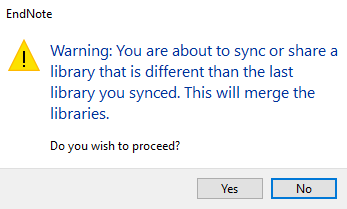
IMPORTANT: Your EndNote Online account can only be synced with one library. If you try to sync additional libraries, they will be merged in EndNote Online. This can then sync with your desktop version and cause it to overwrite the existing library. If you have multiple libraries and you accidentally try to sync one that is not your preferred designated sync library, you will receive a warning message. Choose "No" if this isn't your designated sync library.
Alternatively, have one library only (one EndNote file only) and use multiple groups to arrange your projects and draft papers (instead of multiple libraries. This will be your designated sync library. A second alternative - only sync your main library, and turn off syncing for any additional libraries. This is done in EndNote via Edit > Preferences > Sync > uncheck Sync Automatically. TIP: When you choose the library you wish to have as your Synced library, in the library file name include the word 'synced' or something similar. For example: "My EndNote Library-Synced.enl" |
You may wish to have the contents of your designated EndNote Library on more than one machine, for example a PC and a laptop. You are able to sync the same library to multiple computers. To do this:
- Configure library syncing by opening the EndNote library you’d like to designate as your EndNote Sync library and then click Library > Sync.
- Either sign up or sign in to your EndNote account
- Check the library is syncing by clicking Sync Status
- On a second or third computer, create a new EndNote library (using the same name as the original designated library) by selecting File then New
- Select Library then Sync
- Enter your EndNote account details
- Select OK to do the initial sync to copy down all existing library information.
- After the sync is established, the library will download all the references and attachments held in the original library. Any changes on either device will be transferred to the other device.
There is no limit to the number of devices to which you can sync your library.
Refer to the simplified EndNote 20 (Windows) guide: library syncing for further information.
Share your EndNote desktop application library
The library sharing feature in EndNote 21 allows you to grant access to your designated Sync library by setting up a sharing team with up to 1000 other EndNote desktop users or 1000 EndNote online users.
Note: You cannot share or use a desktop Library on cloud services such as OneDrive or iCloud. The Library will become corrupted
To do this, in EndNote desktop:
- Configure library syncing by opening the EndNote library you’d like to designate as your EndNote Sync library and then click Library > Sync.
- Either sign up or sign in to your EndNote account
- Check the library is syncing by clicking Sync Status
Share entire library
4. Open your designated sync library
5. Click File then Share
6. Enter the email address of an EndNote desktop user to grant access to your library.
Share a Group
7. Right-click a group or from the ‘Group’ Menu and select ‘Share Group’ option
8. After selecting one of these options, you will get a ‘Sharing Group’ dialog
9. Enter the email address (or addresses separated by commas) of the people that you would like to invite in the email box
Finalise sharing a library or a group
10. For each invitee, use the dropdown box to select the desired access level: Read & Write or Read Only
11. Enter an optional message to be sent to the above email address
12. Click on the Invite button Now the user will get the invite to their email address and they will need to accept it. (Fig. 1)
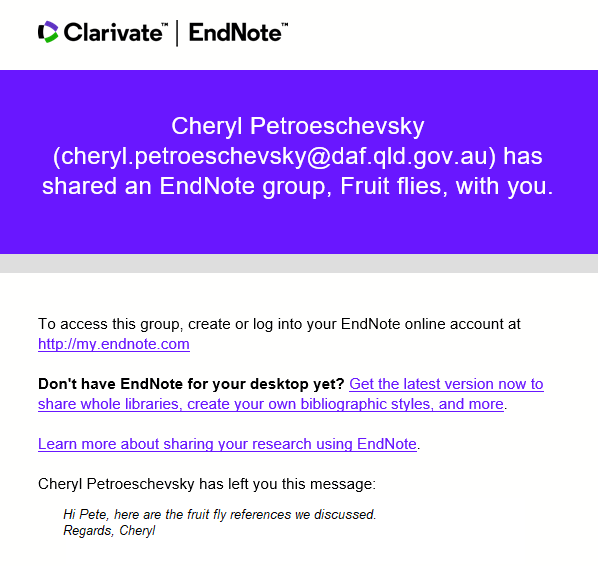
Fig 1
13. When the invited user accesses the group via the link in the email, they are prompted to log in to EndNote Online.
14. In the invited user’s EndNote Online, the shared group appears in the section “Groups Shared by Others”. This shows groups that another person has created and shared with you (Fig. 2).
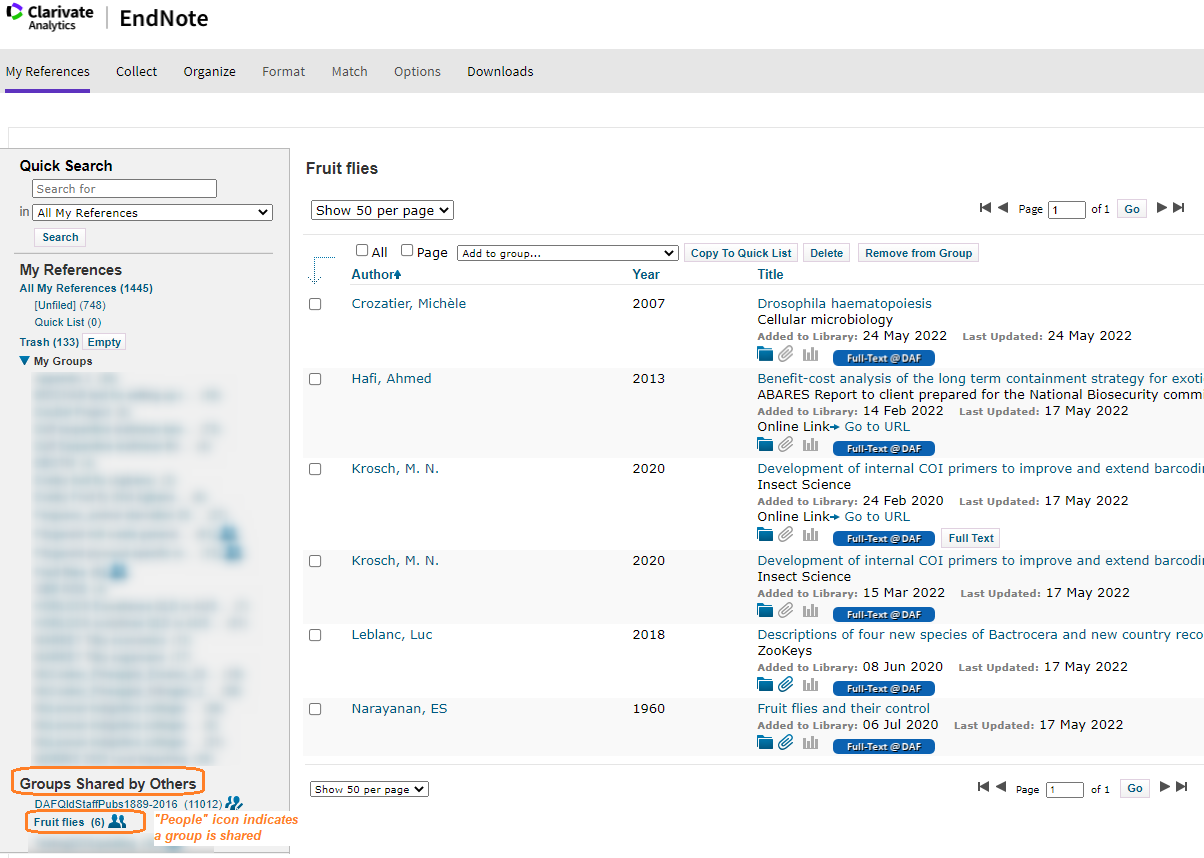
Fig 2
15. In the invited user’s desktop EndNote 21, the shared group also appears in the section “Groups shared by others”. The link takes the invited user to EndNote Online (Fig. 3).
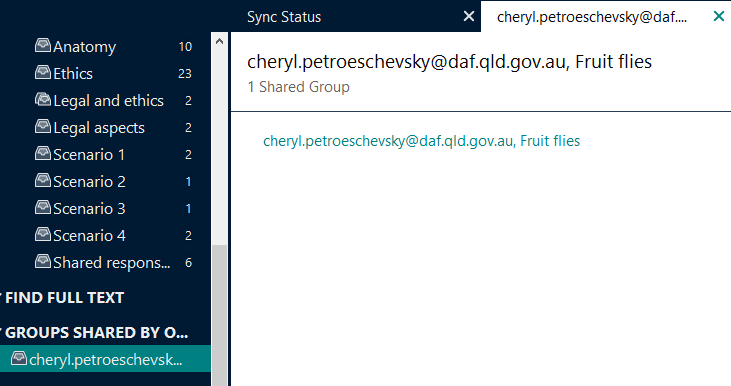
Fig. 3
Open a shared library
16. In the desktop app, go via File > Open shared library. You could be a member of multiple work teams and have multiple shared libraries available to you.
17. You will see a new library open in the desktop app with the email address in the header to show you which library you are in.
18. If you have Read/Write access you can perform all the same functions in the shared library as you can in your own – add or delete a reference, add PDFs and so on.
19. The Shared library opens in your desktop application, not in EndNote Online. Shared libraries open in EndNote just as if you were opening your own library, with full access to PDFs and read/Write permissions (if granted). Remember, the library is saved on a C Drive and can be opened by specified colleagues.
A user who does not have EndNote desktop app will be able to access the shared group by logging onto EndNote Online under the ‘Groups Shared by Others’.
Refer to the simplified Sharing in EndNote 21 guide for further information.
You can also watch this video on how to share the groups using EndNote 20 Desktop version (the same in EndNote 21)
Scenario: a colleague has shared a group of citations with you. You can see them in your EndNote Online and you want them in your own EndNote app or EndNote Online.
1. You need an appropriate Group of your own to move the citations to.
- In the EndNote application, create a new group by Right clicking “My Groups” then create a new group. OR:
- In EndNote Online create a Group by selecting: Organize > Manage My Groups > [Scroll to bottom of page] > Select “New Group”
2. Now you are ready to move the references. In EndNote Online, return to “My References and scroll to the section “Groups shared by others”
3. Select the group that has been shared with you that you wish to copy references from.
4. Check mark the references you want and select “Add to Group”.
5. Select the group you created earlier. The references will be copied.
6. The references won’t appear in the EndNote desktop application until the Library has been Synced.
Q: Can multiple invited users access the EN21 Online library at the same time?
A: Yes.
Q: Can invited EndNote Online users access my attached PDFs?
A: Yes, all PDFs will be accessible to anyone you share your library with. Be aware of copyright and licensing restrictions when sharing PDFs. PDFs downloaded through RIS may be restricted to DPI employees only.
If you only share a group with another user, the PDFs will not be accessible
Q: In EndNote Online can I access my attached PDFs?
A: Yes
Q: If I share my library, can multiple people edit the library at the same time?
A: No. EndNote allows only one user to open a library and add and edit records at a time. You do have the option of setting the library properties as Read-Only in Windows, which will allow multiple people to open the library at the same time, but nobody will be able to add or edit references when the library is opened with Read-Only access. If anyone is working in the library in anything besides Read-Only, you cannot have any other people working with the library at the same time.
More information:
Watch these videos for a further overview of sharing your EndNote with your colleagues.