
The function Cite While You Write (CWYW) is automatically installed into Microsoft Word when you install EndNote. It adds an EndNote tab to your Word ribbon which enables you to quickly insert citations into documents you are writing.
To add in-text citations:
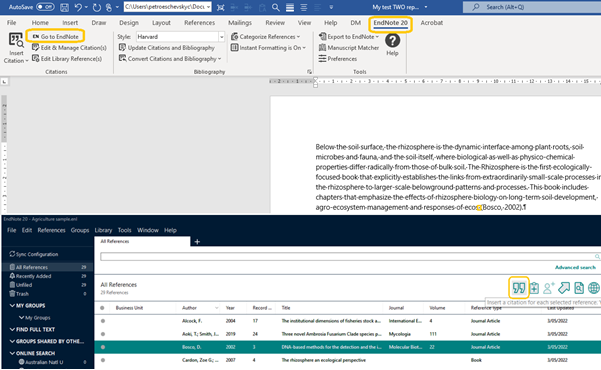
- In your Word document, position your cursor where you would like to insert a citation, for example: at the end of a sentence. You will need to make a space before the full-stop
- Click on EndNote 21 tab and select Go to EndNote and select a reference
- Choose Insert Citation or Alt+2 from the top menu bar. The reference will now be added to Word.
- Alternatively, you can search EndNote for the reference e.g. by keyword, author's surname, research notes etc. Click Find and EndNote will list matching references
- Highlight the matching reference and insert into Word. The Reference list is automatically updated at the end of the document.
The Reference list is automatically updated at the end of the document.
Tip: Insert a page break (<"control enter">) at the end of the document - before the References - to ensure the references appear on a separate page.
- In your Word document, position the cursor at the location for your footnote reference
- Select the References tab in the Word ribbon, and then select Insert Footnote or Insert Endnote. The Word cursor will move to the footnote/endnote location
- Use the EndNote toolbar to insert the citation into the footnote
- Repeat this procedure for each footnote
Tip: Insert a page break (<control> <enter>
Your Word document is linked to EndNote through embedded code. As a result you cannot delete a citation using the backspace or delete keys.
Instead, to delete a citation:
- In Word, highlight the in-text citation (i.e. the author and year in an author-date style, or the number in a numbered style)
- Click on the Edit & Manage Citation(s) button on the ribbon
- Click on the Edit Reference dropdown on the right of the existing reference
- Select Remove Citation
- Click the OK button. EndNote will remove the citation and reformat the list of references.
- Save the changes to your document.
Field codes are the metadata that links your live Word paper to your EndNote library. To prepare a paper for submission, you need to remove the field codes that EndNote inserts through the drafting stage. To do this you need to save your document to plain text format.
- Open your finished and formatted Word document.
- On the EndNote toolbar, go to the Bibliography submenu
- Select the drop down menu Convert citations and bibliography
- Select Convert to Plain Text
- Save the new document under a new name
Field codes are the EndNote codes embedded in your Word document. (They can also be other types of code such as hyperlinks for web addresses)
You can toggle these field codes on and off using ALT + F9
For any number of reasons, sometimes the EndNote toolbar disappears from Word.
To restore the toolbar:
- In Word, select File > Options
- Select Add-ins
- In the Manage drop down menu, select Disabled Items
- Select Go
- Highlight any EndNote item(s) and select Enable
- Select OK
If this method does not restore EndNote to your Word toolbar, please contact RIS for further assistance.
Scenario: you have two different papers in draft, with in-text citations and reference lists. The two papers have two different output styles. You want to merge the two documents into one, with a single output style.
Ensure that the references you are working with are all located in the same EndNote library, otherwise the merging detailed below will not work
- Open a new word document. Let’s call this NW Doc
- From paper #1, Copy the entire content, in-text citations but not the bibliography
- In NW Doc, select Paste Special > Merge formatting (Fig. 1)
- If the Endnote field codes are showing, press ALT + F9 to toggle the codes off
- If the references do not appear in the final reference list, in the Word Endnote menu select "Update citations and bibliography"
- From paper #2, repeat steps 3 to 6
- The text is pasted into NW Doc, and the imported references are added to the right place in the reference list.
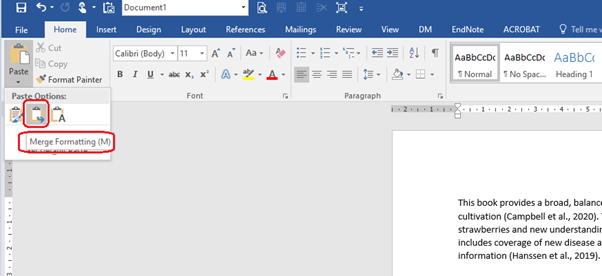
Fig. 1
Add citations in-text
You can now use EndNote Cite While You Write with Google Docs. You will need to make sure you have synced your EndNote desktop to your EndNote Online or Web account before you start.
Follow these steps:
1. Open a blank Google document
2. Sign in to your Google account
3. Click on the Extensions tab at the top of the document
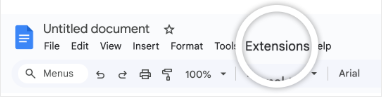
4. Select Add-ons > Get add-ons
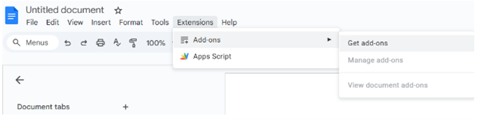
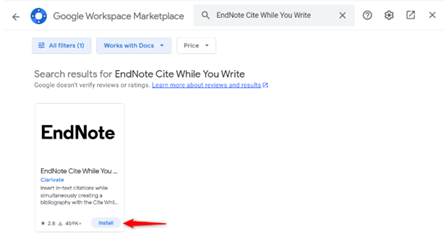
5. Search for EndNote Cite While You Write and click Install
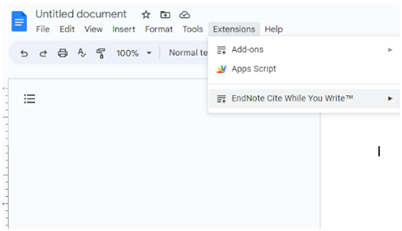
6. Once installed click on the Extensions tab > EndNote Cite While You Write > Open
7. This will open a pane to the left of the screen with all your references
8. Click on the reference you want to insert and click Insert Citation
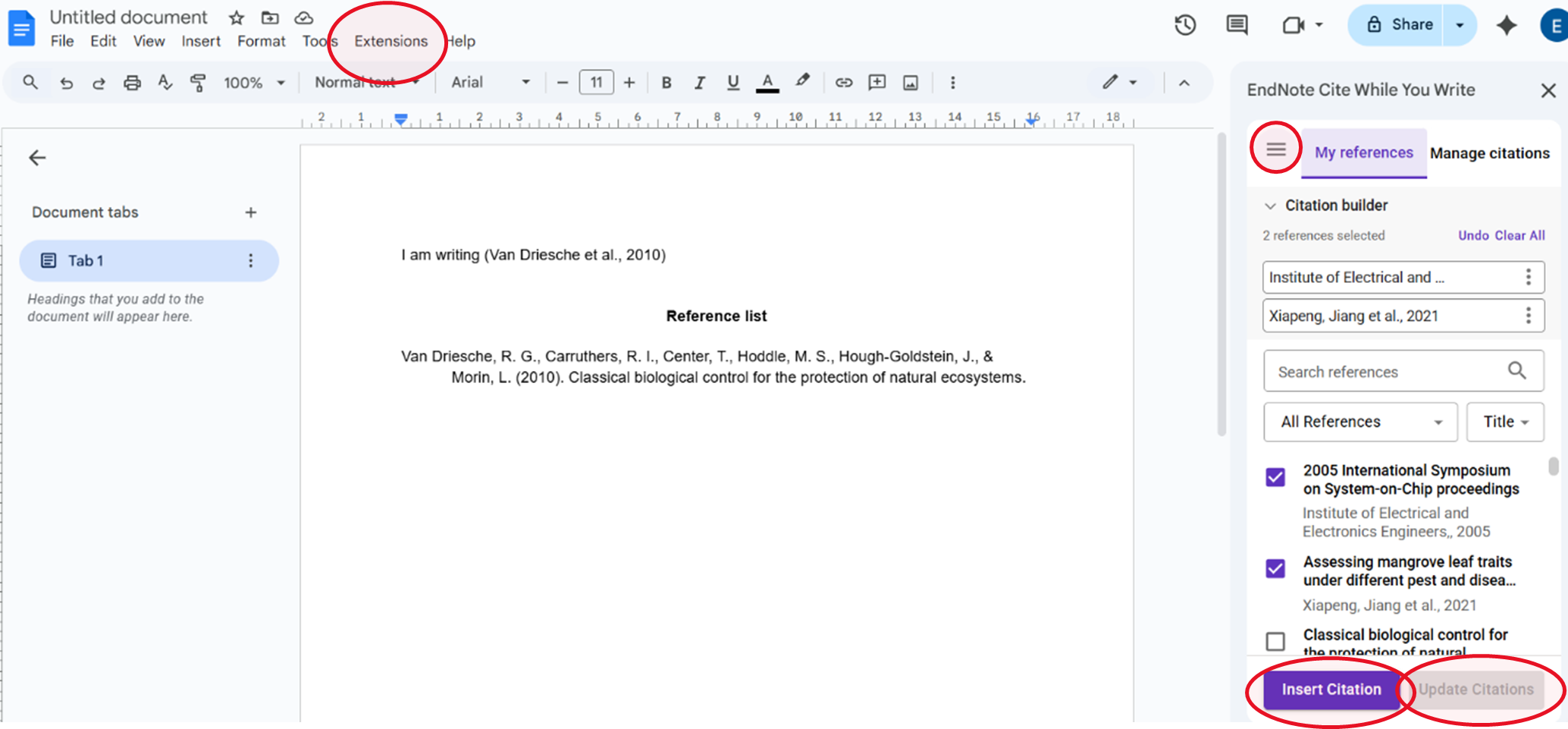
9. The citation will appear in curly brackets until you click the Update Citations button. This will also create a reference list at the bottom of the page.
10. You can sync and manage the citation style by clicking the hamburger icon in the top left of the pane.
Once installed, the EndNote CWYW app for Google docs allows you to update citations from your library and sync your EndNote library.
Important: Copying citations and pasting them somewhere else in the document or cutting text and pasting it somewhere else in the document (where a full citation is inside, not just part of one) will break the involved citation, those will no longer be recognized by CWYW add-on, won't appear in the manage citations screen, and won't be formatted by the update citations process.
Please see the official EndNote instructions to watch a short video on this.
Cite While You Write can also be used with:
- Apache OpenOffice Writer
- Windows LibreOffice
- Apple Pages
- PowerPoint
- Word Online
- Scrivener
- WordPad
- Almost any other application that can save as RTF (Rich Text Format)
For detailed instructions about this see the EndNote 21 Help Guide.